


Integrating Sphere Colorimeter - X-Rite Ci64 Application Tips
The Ci64, as X-Rite's high-end precision handheld colorimeter, is an instrument with an integrating sphere structure designed to measure highly reflective materials, uneven surfaces, or diffusely reflective samples. The Ci64 spectrophotometer offers various configurations, including synchronized SPIN/SPEX output, relative gloss analysis, and UV options, and can even accurately measure a wide range of products and packaging types with uneven surfaces. The Ci64 spectrophotometer offers multiple aperture sizes and can be equipped with a UV LED light source, accurately measuring plastics, textiles, and paper containing optical brighteners. It is especially widely used in the packaging field for digital control of data on gold and silver cardboard and metallic inks.
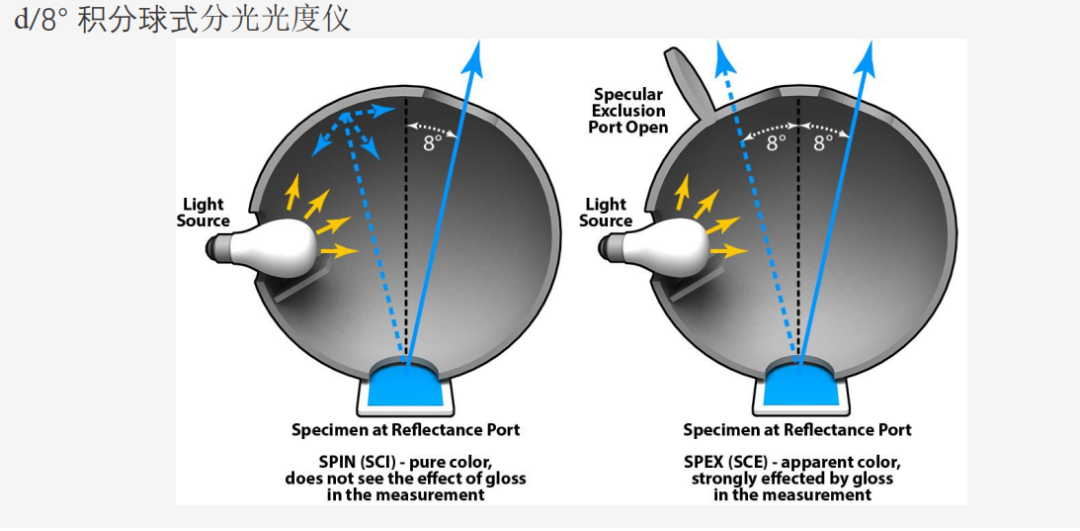
SPIN and SPEX Selection
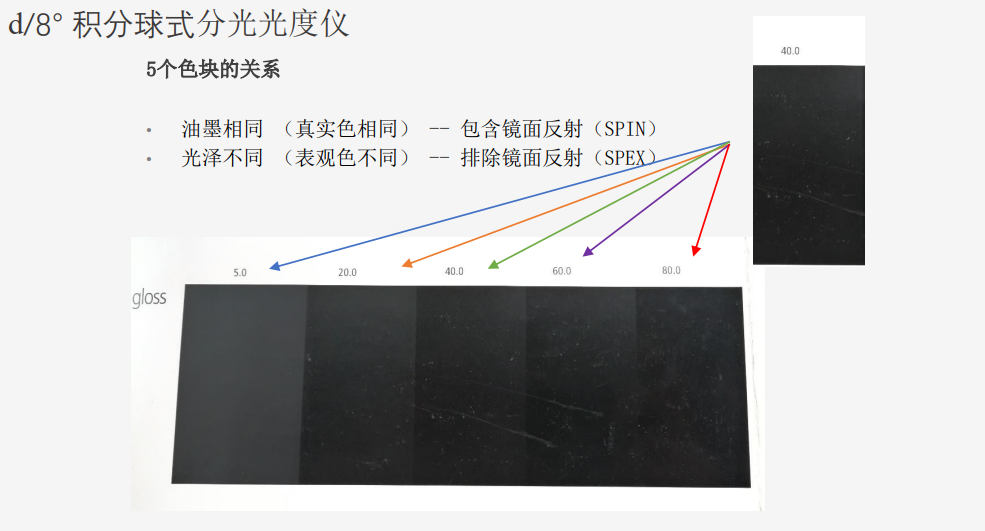
SPEX excludes specular reflection and shows the product's "apparent color," actually reflecting the visual effect of the surface, and is related to the surface condition (smooth or not smooth).
SPIN includes specular reflection and shows the product's "true color," actually reflecting the color of the material, and is not related to the surface condition (smooth or not smooth).
Measurement Mode
Measurement Mode is the main operating mode of the instrument, used to select measurement modes, analyze, and collect sample data. After performing a measurement, you can view the results in various color spaces and light/angle combinations.
Note: If the automatic standard has been disabled before measurement, you must select a standard first.
▪ Entering Measurement Mode
1. On the main screen, use the navigation controls to move the highlighted box to the "Measurement" mode icon.
2. Tap the select control to access the main measurement screen.
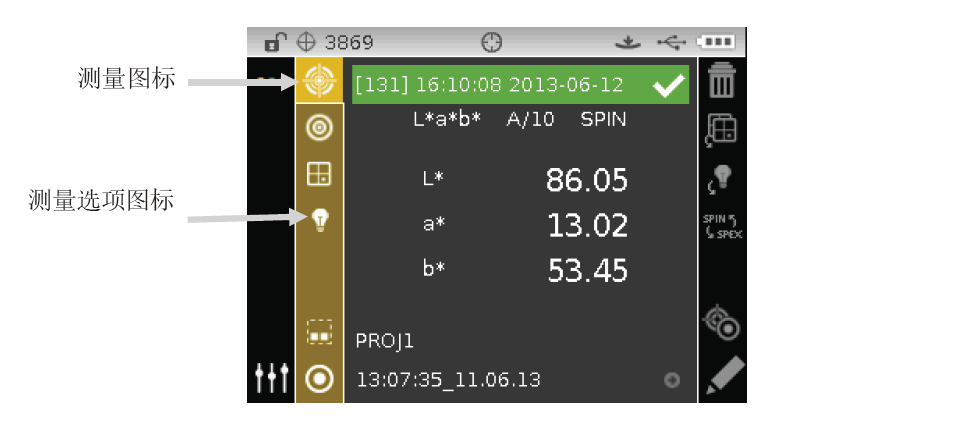
▪ Description of each icon in measurement mode
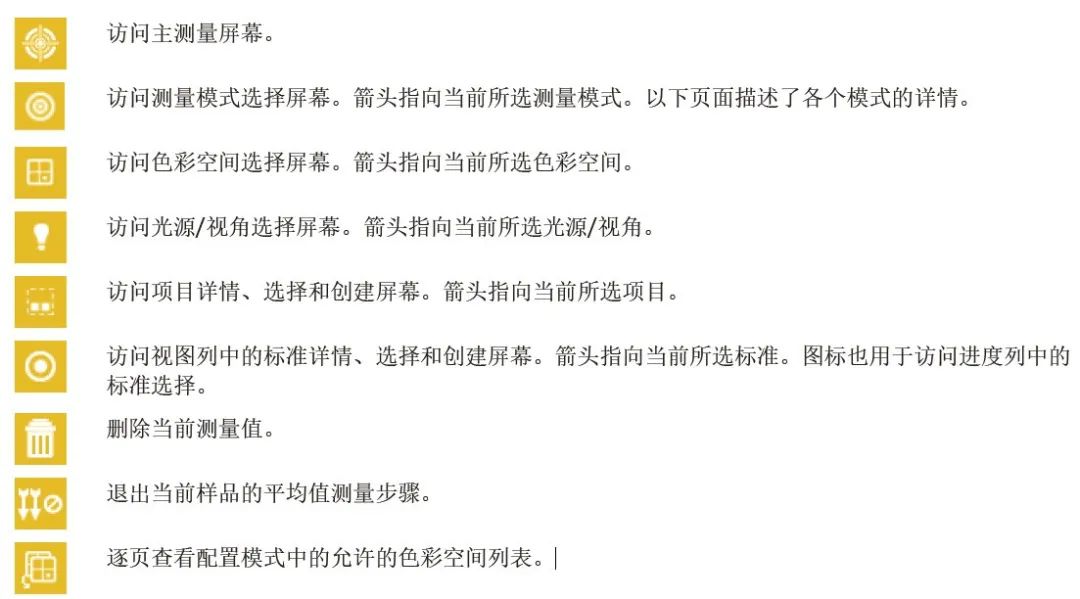
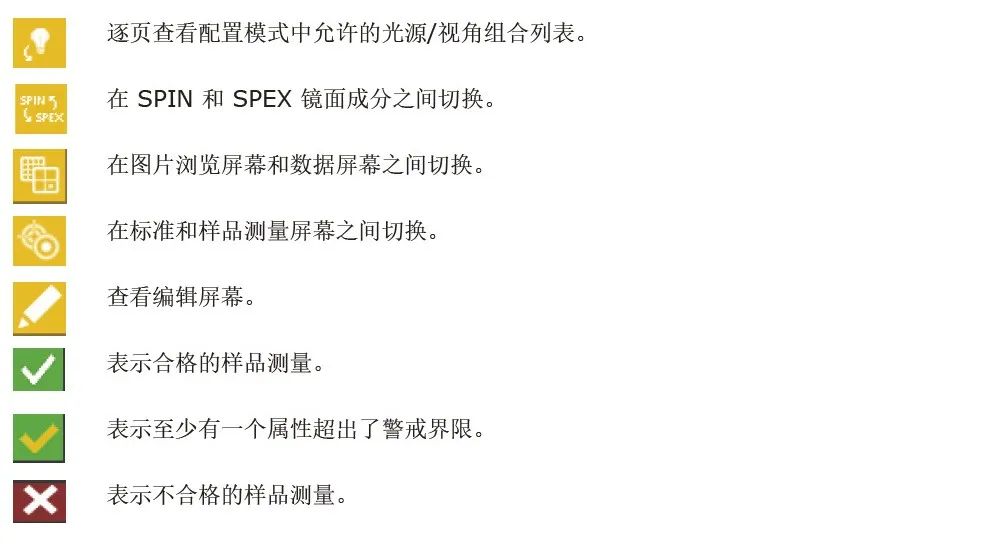
▪ Select Measurement Mode "Measurement Mode"
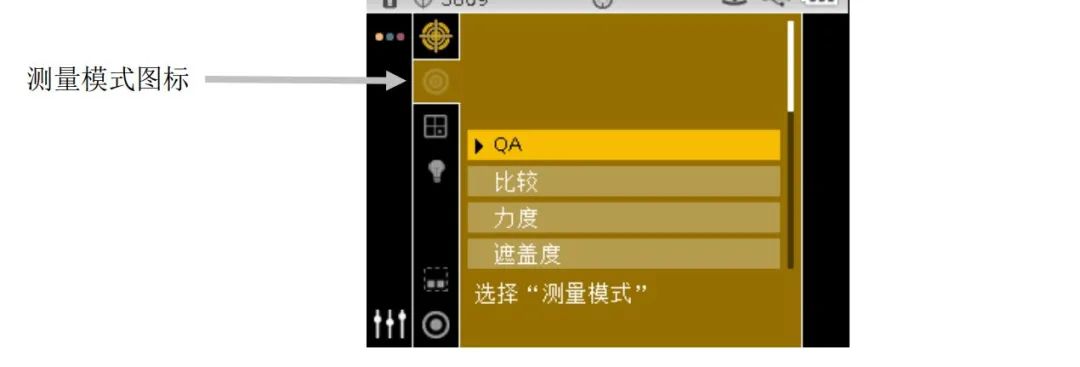
The measurement mode icon is used to select the operating mode of the instrument. The available modes are: QA, Comparison, Force, and Opacity. QA (Quality Assurance) measurement mode is the primary operating mode, used to connect the instrument with quality assurance software packages, such as Color iQC. Measurement sample data is compared with stored standards to display differences. Data stored in the instrument can be uploaded to the software for in-depth analysis. For details on the other measurement modes, please refer to the following sections.
▪ To select a measurement mode:
1. On the "Measurement" screen, use the Up or Down navigation buttons to move the cursor to the measurement mode icon.
2. Press the Select or Right button to enter the measurement mode selection area.
3. Use the Up or Down navigation buttons to move the cursor to the desired mode.
4. Tap the Select button. An arrow icon will appear next to the selected mode, and the screen will return to the measurement screen.
Comparison Mode
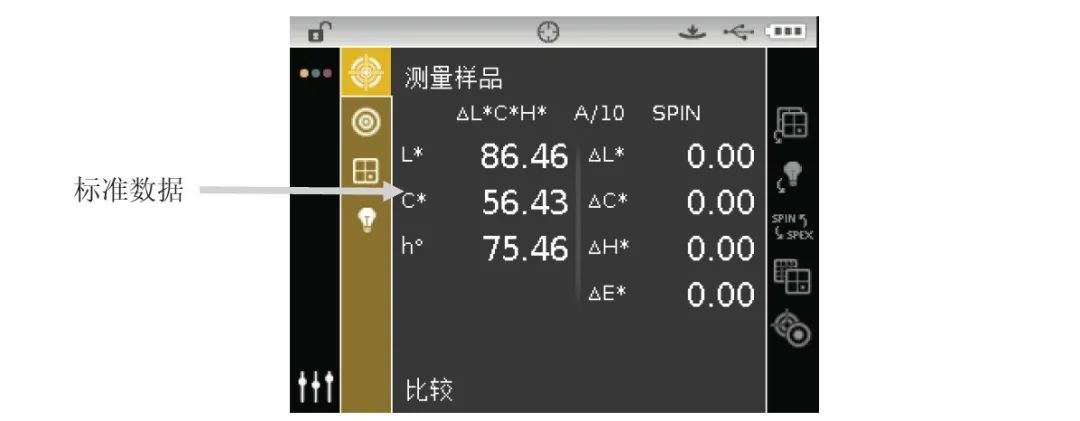
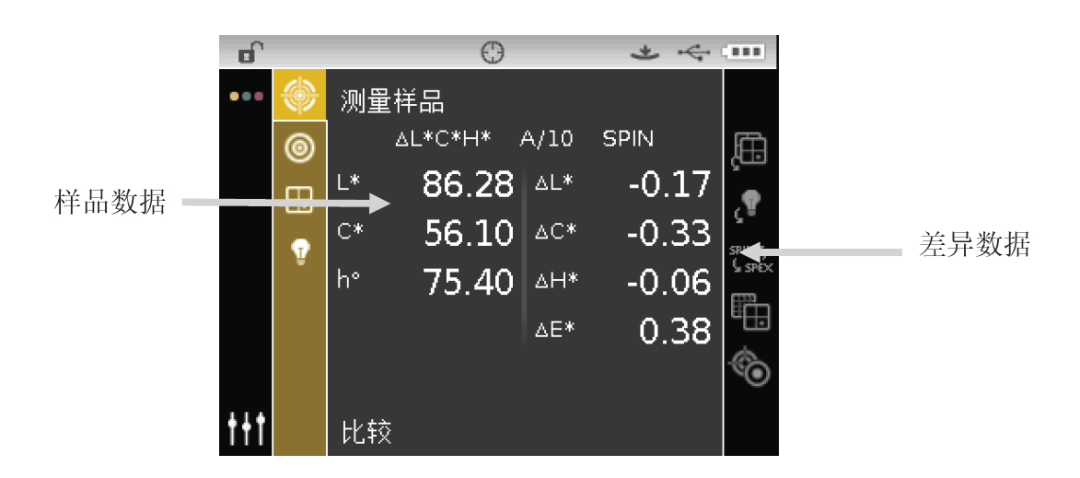
Comparison Mode is a quick way to perform comparative measurements without storing data. When entering Comparison Mode, the first measured value serves as the standard, and subsequent measurements are considered samples, compared against the standard. If necessary, the standard can be re-measured.
▪ Performing a Comparison Measurement:
1. From the "Measurement" screen, use the up or down navigation buttons to move the cursor to the measurement mode icon.
2. As described above, select Comparison Mode.
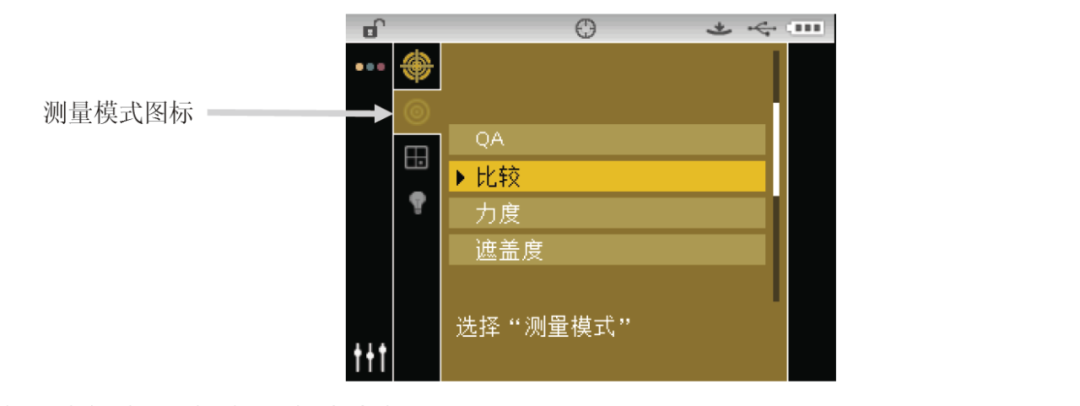
3.Select the light source/viewpoint and color space.
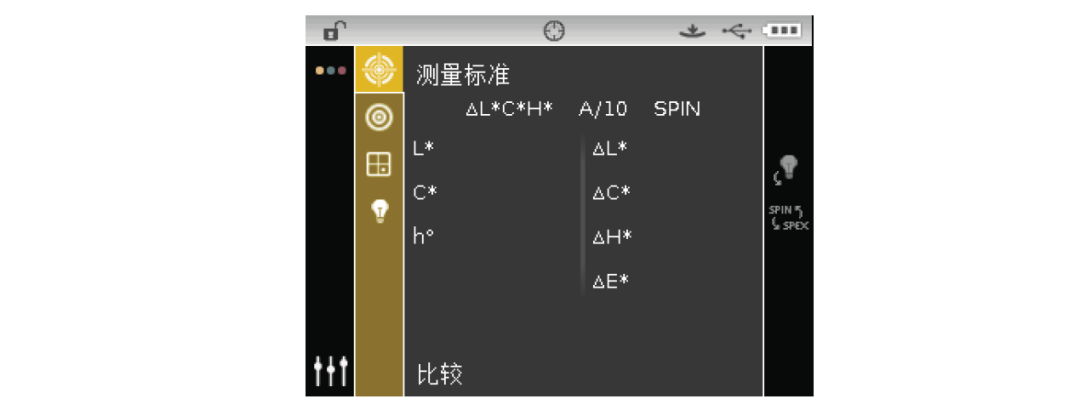
4.Place the instrument on the standard and take measurements
5.Place the instrument on the sample for comparison and measurement.
▪ To measure different standards:
1. Press the right navigation button to highlight the progress column.
2. Use the up or down navigation buttons to select the standard/sample switch icon.
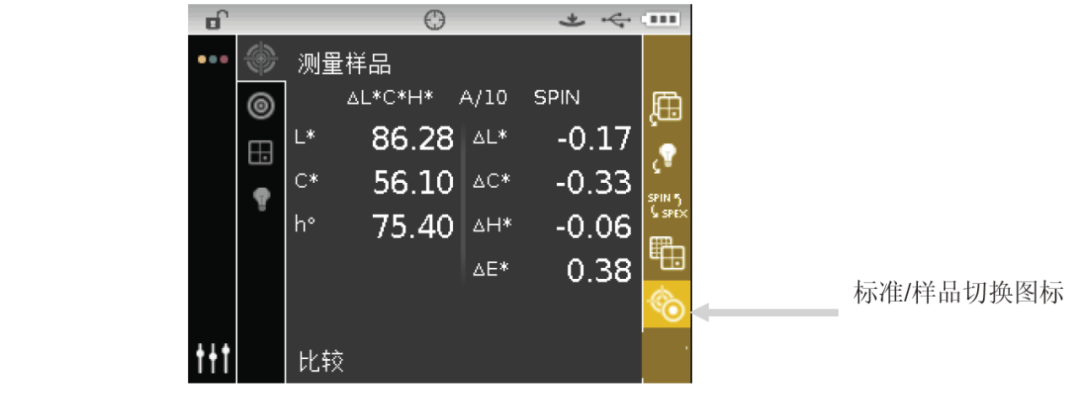 3. Tap the select button to switch to the measurement standard screen.
4. Measure this standard.
Tap the select button, and the standard/sample icon will be highlighted, allowing you to switch the measurement screen between measuring the standard and measuring the sample.