


How to obtain vector graphics
In completed vector graphics, it is common to encounter the need to crop vectors.
Adobe Illustrator (hereinafter referred to as AI) is a powerful vector graphics software. It has now developed from the CS6 version to the CC version and is widely used in thematic map creation. Here, we discuss two methods of obtaining vector graphics in combination with AI CS6.
01 Obtaining Partial Vector Graphics
Extracting a part of a map for 'reference' or 'processing' to create other thematic maps. For example, in (Figure 1), to 'extract' the content within the black box in the vector map of Tajikistan, double-click the 'Eraser' tool to adjust the eraser size (generally 8 pt). Hold down the Shift key and draw straight lines along the black box to form a rectangular frame as shown in (Figure 2).
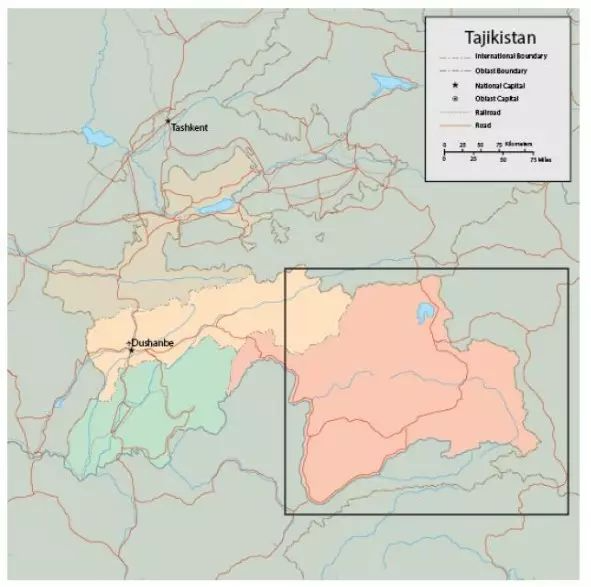
Figure 1 'Remove' the content of the black box
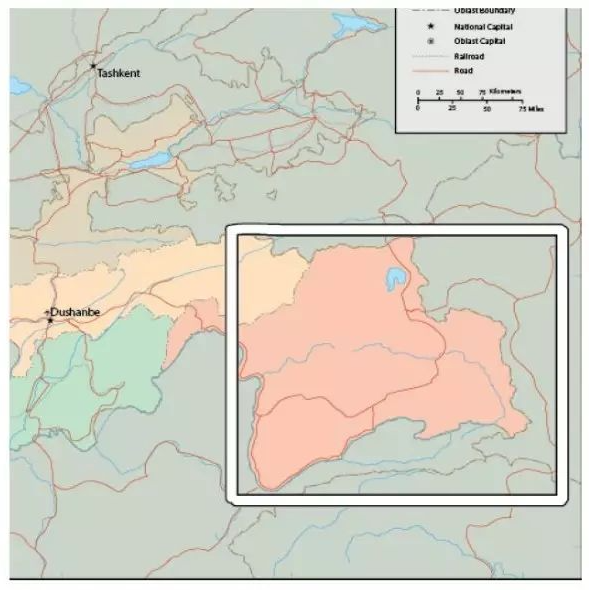
Figure 2 Draw a black rectangular box
Use the AI 'Direct Selection' tool to select the required content, then click 'Select - Inverse' and press the Del key to delete the unnecessary content (Figure 3). On this basis, further edit the vector map, such as zooming in and out, adding geographic name annotations, etc., as shown in (Figure 4).
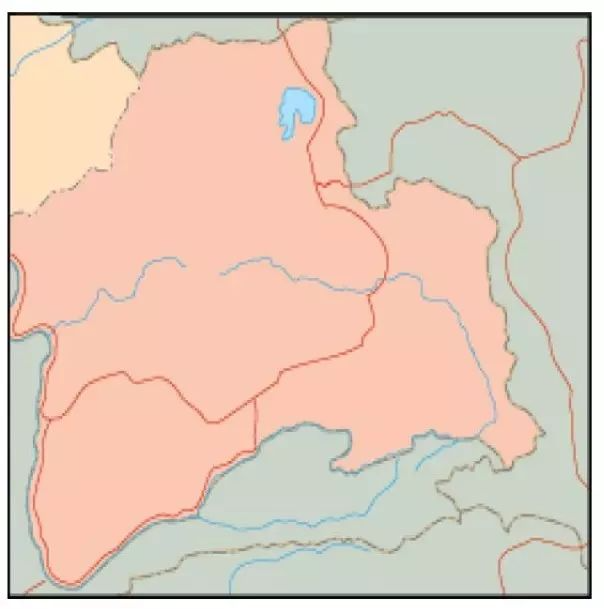
Figure 3 Remove unnecessary content
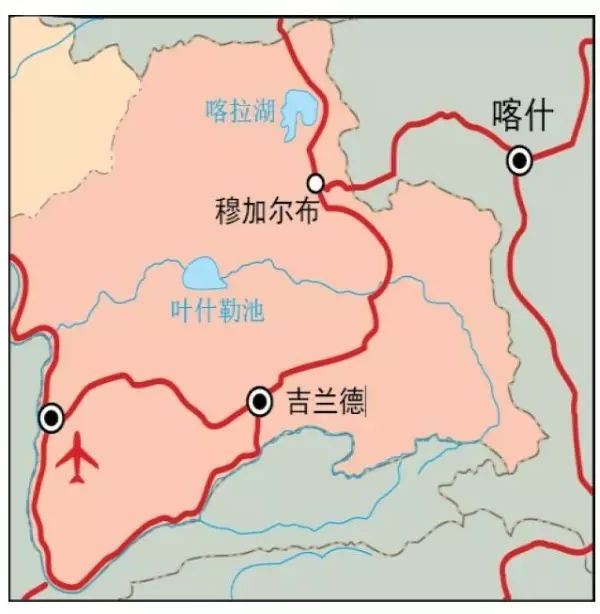 Figure 4 Further Editing of Vector Graphics
Instructions: Hold down the Shift key while dragging the Eraser tool to draw straight lines at 0°, 45°, or 90°; hold down the Alt key to draw a rectangle; hold both Shift and Alt to draw a square; all of these actions erase the content within the selected area. Text that has not been converted to curves within the area will not be erased, nor will locked or hidden layers be affected.
If no objects are selected, the Eraser tool can erase objects on different layers. When an object is selected, it only erases the selected object and does not affect other objects. For irregular vector areas, you can use the Pencil or Pen tool to draw a path around the selected area, and then use the Eraser tool to erase along the path. Additionally, after erasing irregular areas with the Eraser tool, you can use the Lasso tool to select the area, then use inverse selection to delete unwanted content and obtain the desired vector shapes.
For grouped objects, you can use the Pen tool to draw a path, then use the "Subtract" function in the Pathfinder panel to cut, and finally ungroup the resulting vector shapes.
Use clipping masks to obtain partial vector shapes: first, group the vector graphics, then create a clipping mask. The mask and the vector graphics must be on the same layer.
02 Image Tracing
For simple bitmaps generated by office software (such as Office) or image processing software (such as Photoshop), you can directly copy the image and paste it into AI for image tracing. Select the object, click on "Image Trace" in the control panel, and then click the "Expand" button. The image will then be converted to a vector graphic as shown in (Figure 5). This is the AI tracing effect for clip art from Office Word 2013. To further edit the expanded vector graphic, you should also "Ungroup" the objects.
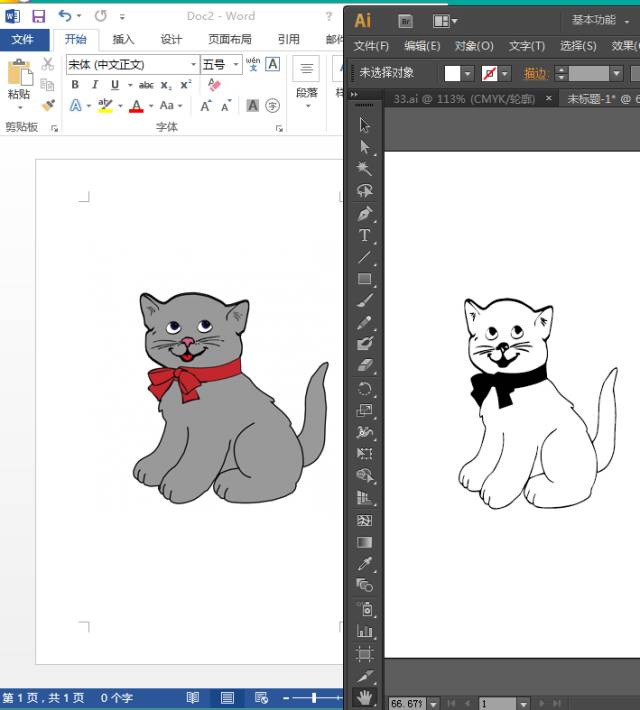
Figure 5 Convert the image to a vector graphic
For relatively blurry or complex images that cannot be traced automatically, a manual tracing method can be used. Place the image in a locked layer and adjust the opacity (generally 50%) as shown in (Figure 6). Create a new layer, choose an appropriate stroke width and color based on the image, and use the pen or pencil tool to trace along the image contours to form a rough outline. Then, zoom in to further 'refine' the details in specific areas, as shown in (Figure 7), which illustrates the effect after tracing and editing.
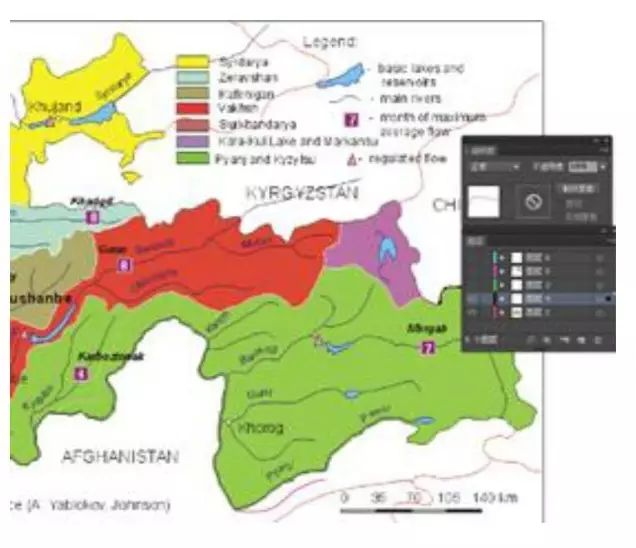
图6 调节图像不透明度
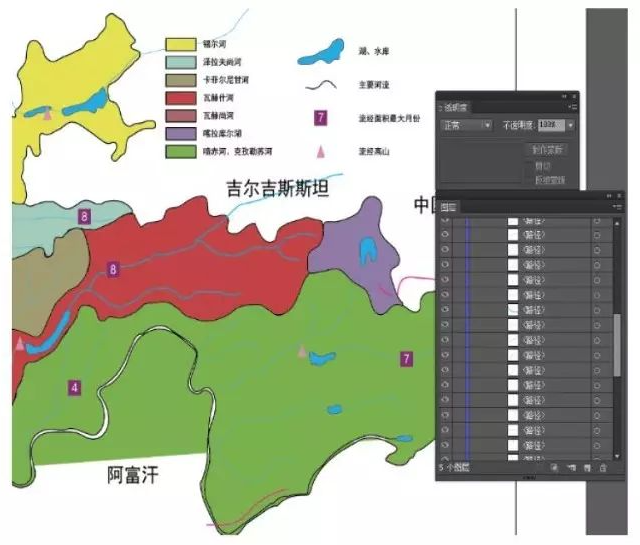
Figure 7 Edited Image Effect