


What points are included in prepress bleed check for PDF documents?
In prepress inspection work, checking PDF document bleed is one of the essential items that every printing factory must examine. Manually checking multi-page PDF documents page by page is not only time-consuming and labor-intensive but also prone to errors. Many printing factories use specialized tools or plugins for inspection, which can greatly improve the efficiency and accuracy of prepress work. This article takes the prepress inspection function built into Adobe Acrobat Pro DC as an example to explore how to correctly set up the bleed check item in prepress inspection.
First, we open the document that needs to be checked with Acrobat, find the "Print Production" button under the "Tools - Protect and Standardize" category, and click it. At this point, a sub-menu list for print production appears on the right side of the software, as shown in Figure 1.
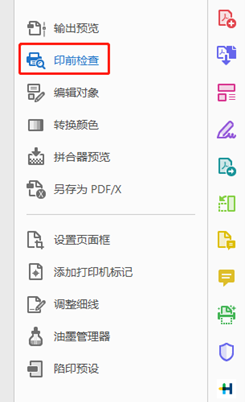
Figure 1 Printing Submenu
Next, click the second item 'Prepress Check' in the menu, and the Prepress Check dialog box shown in Figure 2 will pop up.
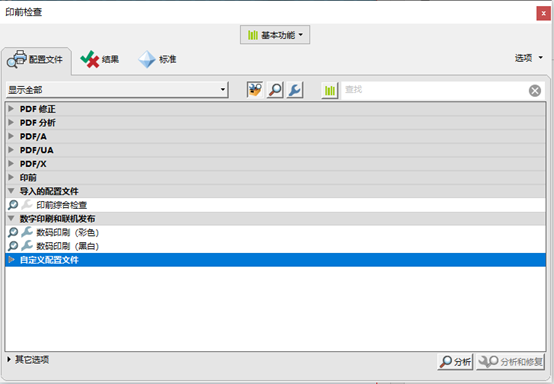
Figure 2 Prepress Check Dialog Box
Many Acrobat preset check items have already been integrated under the Profiles tab. The bleed check item we need to perform is not included, so we need to create a profile. Click the 'Options' button in the upper right corner, and in the pop-up menu select 'Create Profile'. The software will then display the Edit Profile dialog box as shown in Figure 3.
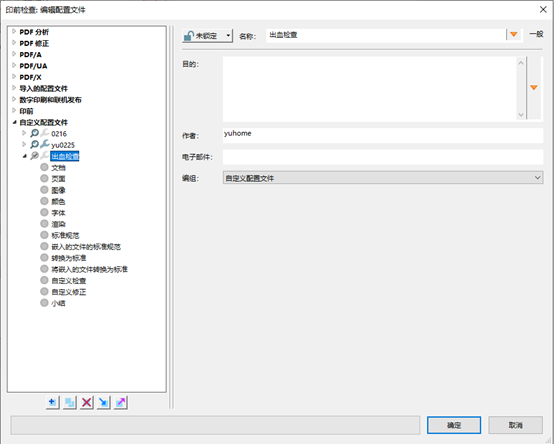
Figure 3 Editing Configuration File Dialog Box
For future use, we can name this configuration file 'Bleed Check.' The menu on the left lists multiple inspection items such as document, page, image, and color. We can configure them one by one as needed, but the content related to bleed checks is not included. You can use custom inspections to set the bleed check content. Click the 'Custom Inspection' option, and the inspection content corresponding to the items will appear on the right, as shown in Figure 4. On the right side of the dialog box, all available custom inspection items are listed, but the bleed check content we need is not among them. At this point, you need to click the '+' sign in the circle at the bottom left to create a new inspection item.
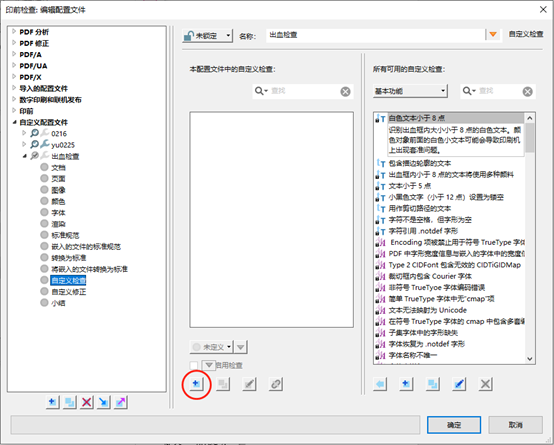
Figure 4 Custom Check Dialog Box
In general, post-press processing requires that the bleed must not be less than 3mm. Therefore, we can name this check item "Bleed Less Than 3mm." Then, in the properties panel on the right, directly enter "bleed" to quickly find all check items related to bleed. The meaning of the bleed not being less than 3mm is that the minimum offset of the bleed box distance from the trim box in the PDF document must not be less than 3mm. So here, we need to select "Minimum Offset of Bleed Box from Trim Box (mm)" in the properties panel in Figure 5 and add it to the lower right corner of the dialog box, then select "Less Than" in the trigger button, set the value to "3", and the allowable margin of error can be set as needed, such as "0.1".
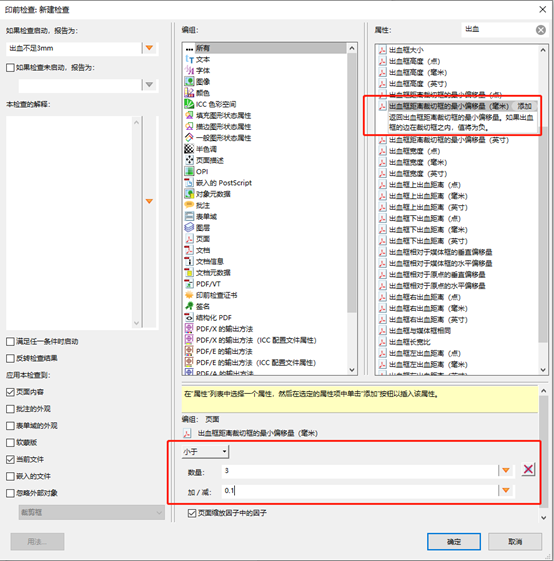
Figure 5 Dialog Box for Bleed Less Than 3mm
After setting the bleed check profile, we select the custom "Bleed Check" profile in the prepress check dialog box, and click the "Analyze" button at the bottom right to directly find out which pages of the PDF document have a bleed setting of less than 3mm, as shown in Figure 6.
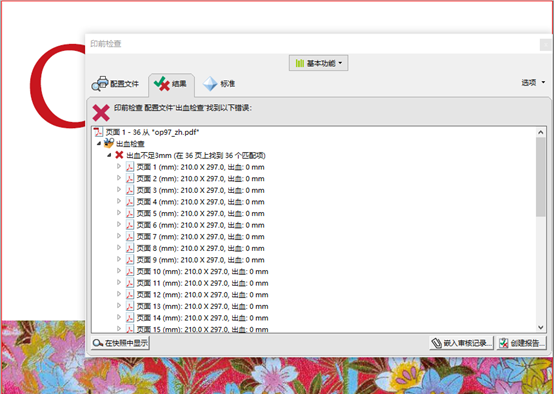
Figure 6 Results of inspection for insufficient bleed less than 3mm
In actual practice, we have found that some documents checked using the above method show no problems, but in fact the bleed settings of the documents are not correct. This is because some PDF documents do not contain bleed and crop boxes, as shown in Figure 7.
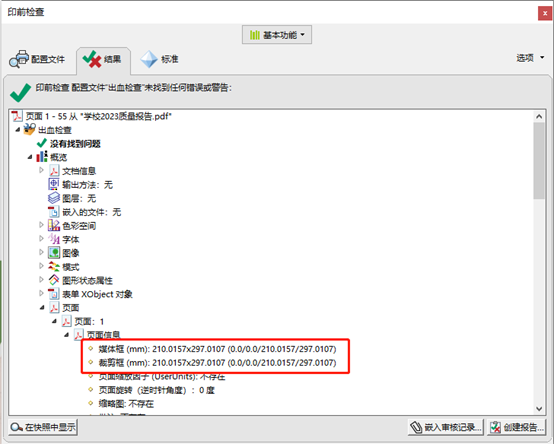
Figure 7 Documents without bleed boxes
For these documents, we need to add an item in the "Bleed Check" profile to check whether bleed boxes exist, as shown in Figure 8. This way, even if a document does not have a bleed box set, it can still be directly checked.
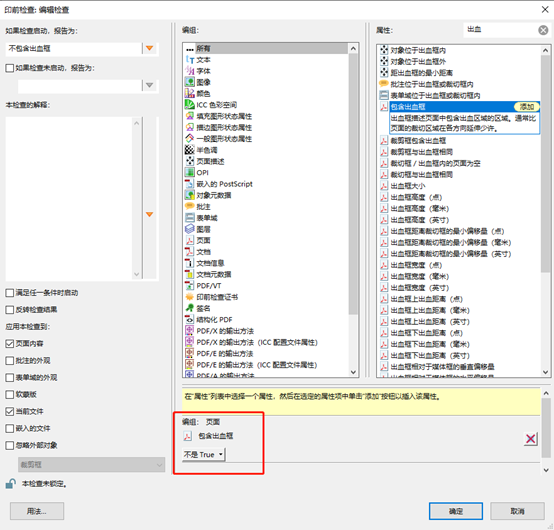
Figure 8 Inspection settings without a bleed box
Finally, there is one situation that many beginners in prepress easily make a mistake with. The document correctly sets the bleed, but the text and images in the document are only placed within the trim box. In such a document, the distance between the bleed box and the trim box is correct, but there are no text or images between the bleed box and the trim box. This is still incorrect for post-press processing.
For such documents, we need to add an item in the "Bleed Check" profile to check whether there are any text or image objects outside the trim box, as shown in Figure 9. This way, if there is an incorrect bleed setup in the document, it can be detected.
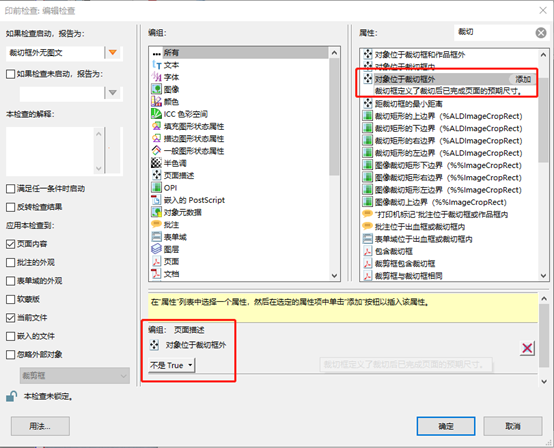
Figure 9 Prepress Check Settings for Areas Outside the Trim Box without Images or Text
In summary, a relatively complete bleed check profile should include at least the three checks mentioned above: checking the minimum offset between the bleed box and the trim box, checking for the presence of a bleed box, and checking for any image or text objects outside the trim box. Many prepress operators focus on the first check and tend to overlook the second and third checks. If a PDF document with issues in the second and third checks is sent directly for output, it can cause considerable problems during post-press trimming. It is hoped that everyone can make full use of Acrobat's prepress checking tools to improve the efficiency and accuracy of our prepress checks.