


These two software applications are good; converting between four-color and spot colors is not a problem!
Digital printing and traditional printing complement each other. The same electronic file needs to be suitable for both traditional printing and digital printing. However, for spot colors, due to differences in printing processes and equipment, traditional printing presses require electronic files with dedicated spot color plates, and the plate layout is used with spot color inks for printing. Most color digital printers can only print in four colors; even some high-end machines that can print spot colors only have a few dedicated inks. Therefore, electronic files need to convert spot colors to four-color for the printing simulation. Consequently, electronic files containing spot colors require special handling before they can be used with the corresponding printing method.
Below, for commonly used PDF electronic documents in printing, the author uses Acrobat DC and the Enfocus PitStop plugin to provide examples of how to conveniently and quickly convert PDF files between four-color and spot color without the original files.
01 Spot Color to Four-Color (for Digital Printing)
First situation: The electronic file has a separate spot color plate and the color preview is correct, as shown in Figure 1. Acrobat DC, the Enfocus PitStop plugin, or a RIP can be used to convert spot color to four-color. As shown in Figure 2, Acrobat DC conversion is done by selecting "Print Production" → "Convert Colors" → "Ink Manager"; Figure 3 shows the Enfocus PitStop plugin conversion, done by selecting "Global Changes" → "Standard" → "Color" → "Convert Spot Colors to CMYK."
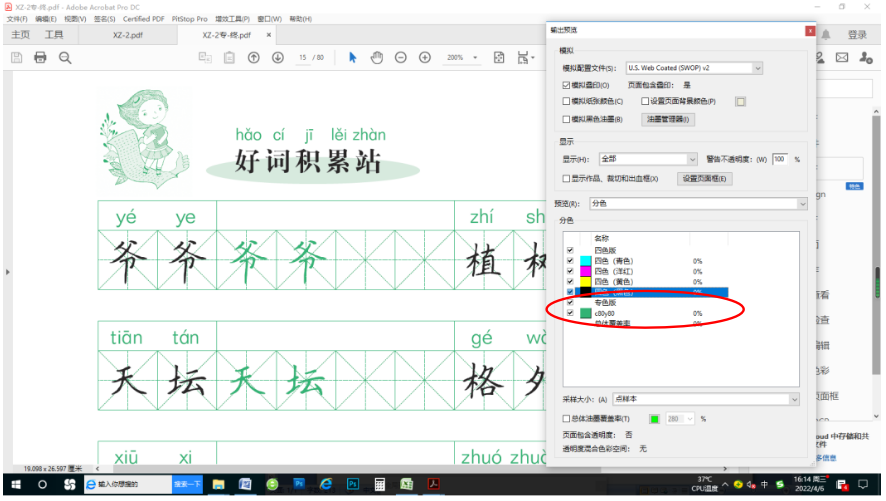
Figure 1 The electronic file has a separate spot color plate
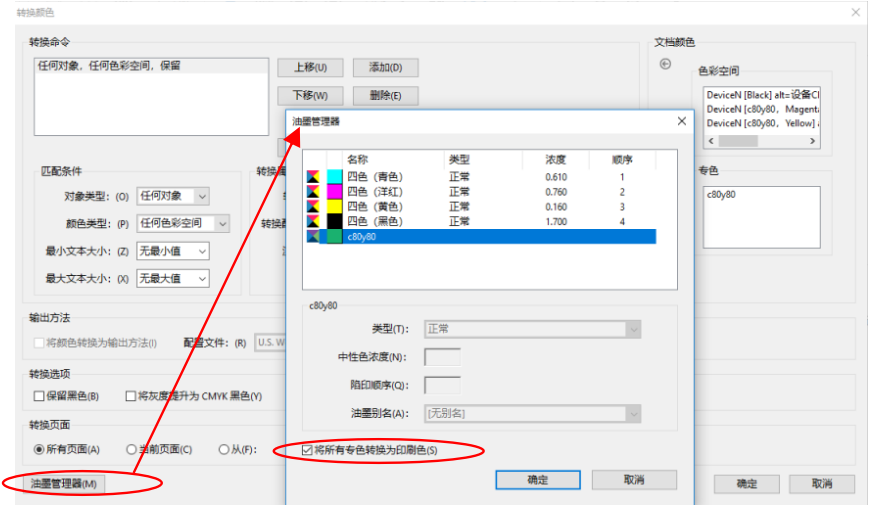
Figure 2 Acrobat DC Conversion
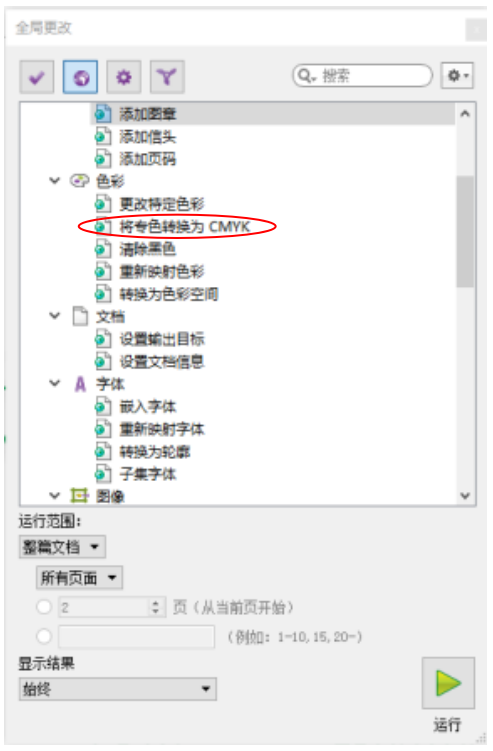
Figure 3 Enfocus PitStop Plugin Conversion
Second scenario: The electronic file is made in two colors, namely single color black. This is the common method used in traditional printing for prepress imposition of spot colors, treating the single color plate as the spot color plate for imposition. At this point, the single color plate needs to be converted into the required four colors, while the black plate remains unchanged, as shown in Figure 4.

Figure 4 Converting a monochrome version to four colors, keeping the black plate unchanged
(1) The PDF document contains only text and graphics. To change the substrate from M100 to C100 M100 Y15 while keeping the black text unchanged, using the Enfocus PitStop plugin as an example, open the plugin's "Global Change," select "Color" → "Change Specific Color," change the color value in "Remap" to the original color value M100, and change the color value in "To" to the desired color value C100 M100 Y15, then click "Run." The process is shown in Figure 5.
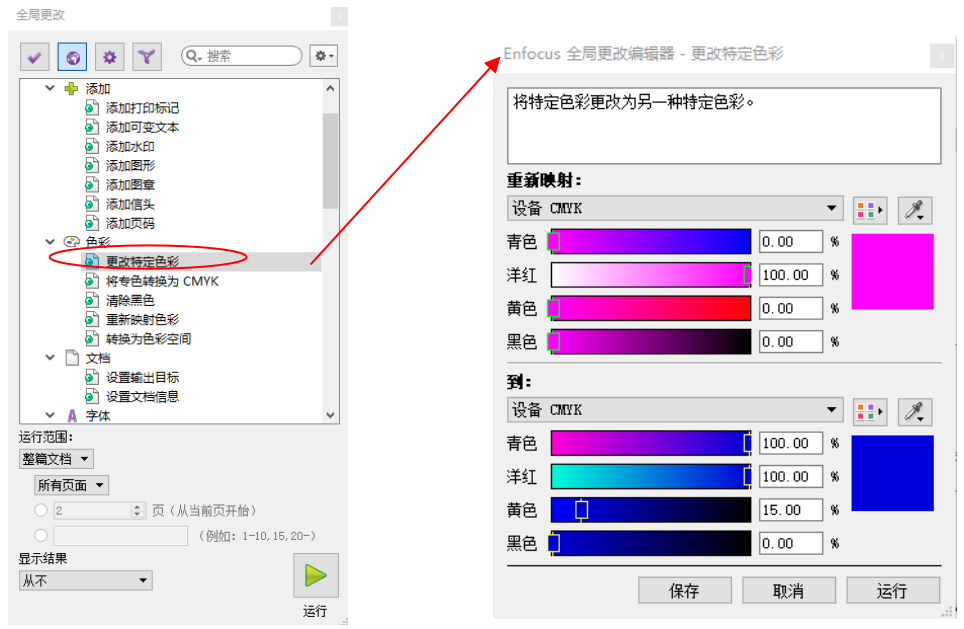
Figure 5 Enfocus PitStop Plugin Operation Process
(2) PDF documents contain text, graphics, and images. Images cannot have their colors changed by directly defining color values; you must first define a monochrome channel as a spot color, then assign color values to the spot color, and finally convert the spot color to CMYK. If you want to convert a single-channel C plate to a C50 M100 C50 spot color plate, the black text remains unchanged. The following are the operation steps for the Enfocus PitStop plugin.
Step 1: Open the 'Global Changes' in the Enfocus PitStop plugin, click 'Remap Colors' under 'Colors,' as shown in Figure 6.
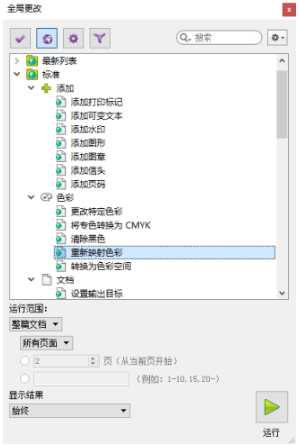
Figure 6 Step One Diagram
Step Two: In the Remap panel, select 'Channel', choose the corresponding monochrome 'Cyan', then in the 'a:' field below, select the color spot to be mapped, and click 'Pick Color', as shown in Figure 7.
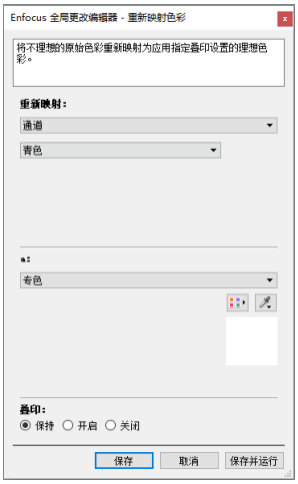
Figure 7 Step Two Diagram
Step Three: In the 'Spot Color Picker' panel, you can select spot color library colors from 'Standard'.
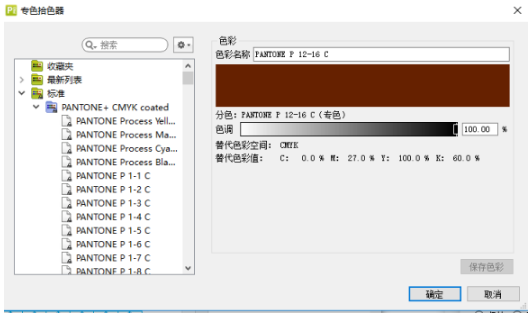
Figure 8 Step Three Diagram
Step Four: If it is not a standard spot color from the color library, you can also customize the color value 'locally' by using the 'New' option in the palette to define the required spot color value in CMYK.
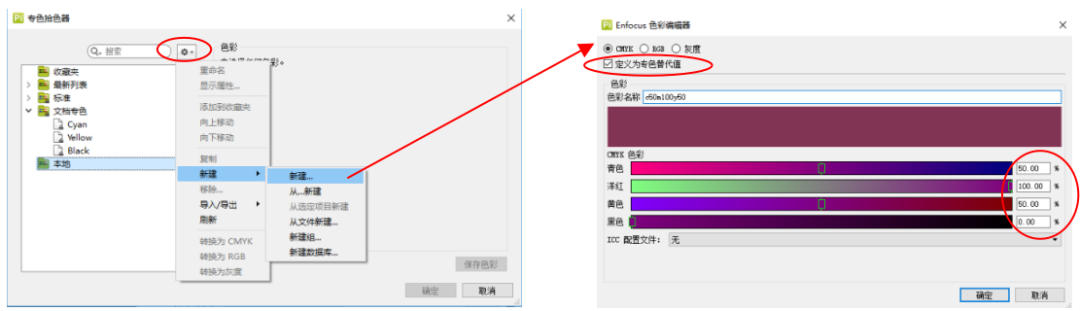
Figure 9 Step Four Diagram
Step Five: Once determined, return to the "Remap Colors" panel, and the spot color will change to the desired color.
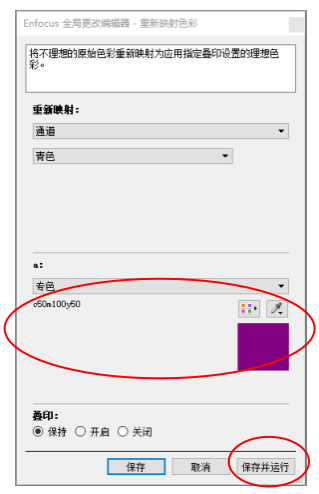
Figure 10 Step Five Diagram
Step Six: After 'Save and Run', the content of channel C is converted into a spot color version, where C100 corresponds to C50 M100 C50.
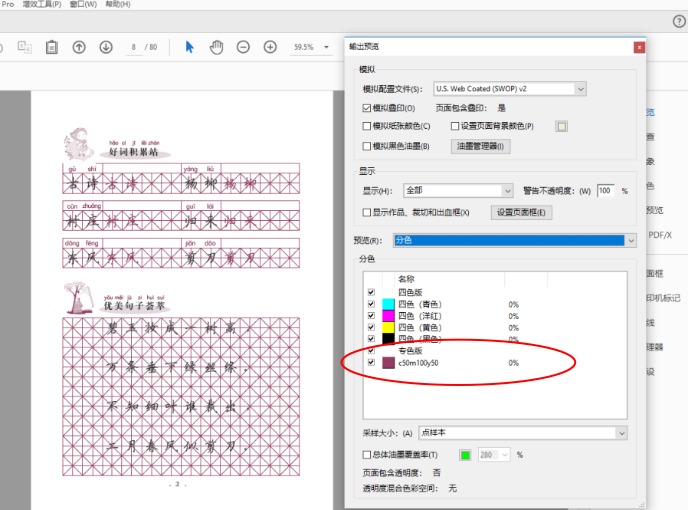
Figure 11 Step 6 schematic diagram
Step 7: Then use Acrobat DC, the Enfocus PitStop plugin, or RIP to convert the spot color to the corresponding CMYK values, as described above in 'the first situation'.
02 Converting CMYK to Spot Color (for traditional printing)
Some electronic files create CMYK values directly for spot colors, without a separate spot color plate. This is convenient for digital printing but cannot be used for spot color printing in traditional printing. We need to extract the spot color from the CMYK plates and make it a separate spot color plate for prepress, to meet the requirements of traditional printing.
(1) The spot color plate includes only graphics or text, not images. As shown in Figure 12, the bluish-purple background is spot color, and the three characters 'Notebook' are spot colors.

Figure 12 The spot color plate contains only graphics or text
Step 1: First measure the color values of the background and text. Open the "PitStop Check" tool → "Eyedropper", use the eyedropper to click on the background and text, and measure the color values separately: the background color value is C85 M100, and the text color value is C20 M50 Y100, as shown in Figure 13.
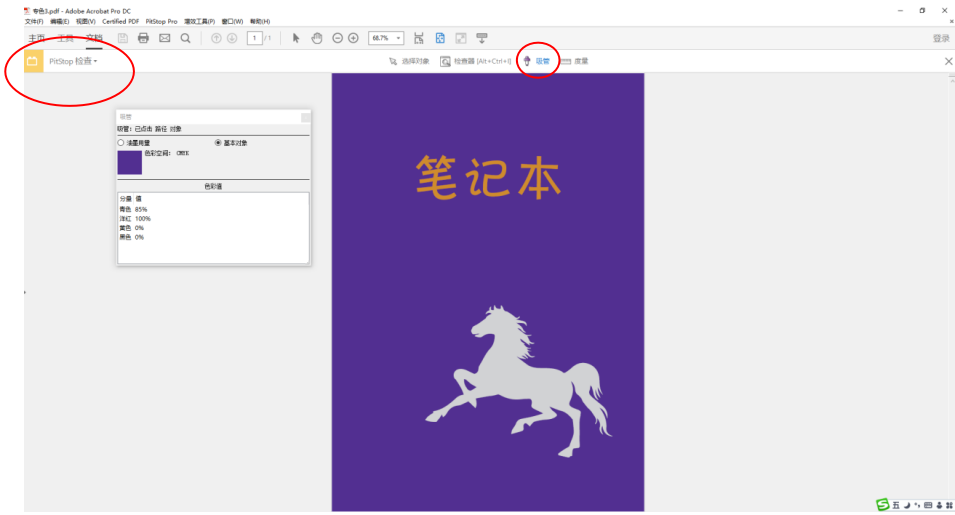
Figure 13 Step One Diagram
Step Two: Open PitStop's 'Global Change' → 'Standard' → 'Color' → 'Change Specific Colors', double-click to bring up the dialog box, as shown in Figure 14.
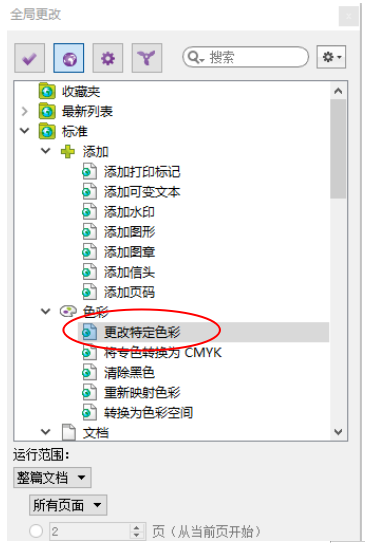
Figure 14 Step Two Diagram
Step Three: Fill in the base color value at 'Remap', first select 'Library Color' at 'To:', then click the spot color picker on the right to define the spot color. After defining and clicking 'OK' respectively, the library color at 'Remap' will change to the spot color with the same value. After 'Save and Run', the base color becomes the spot color version, as shown in Figure 15.
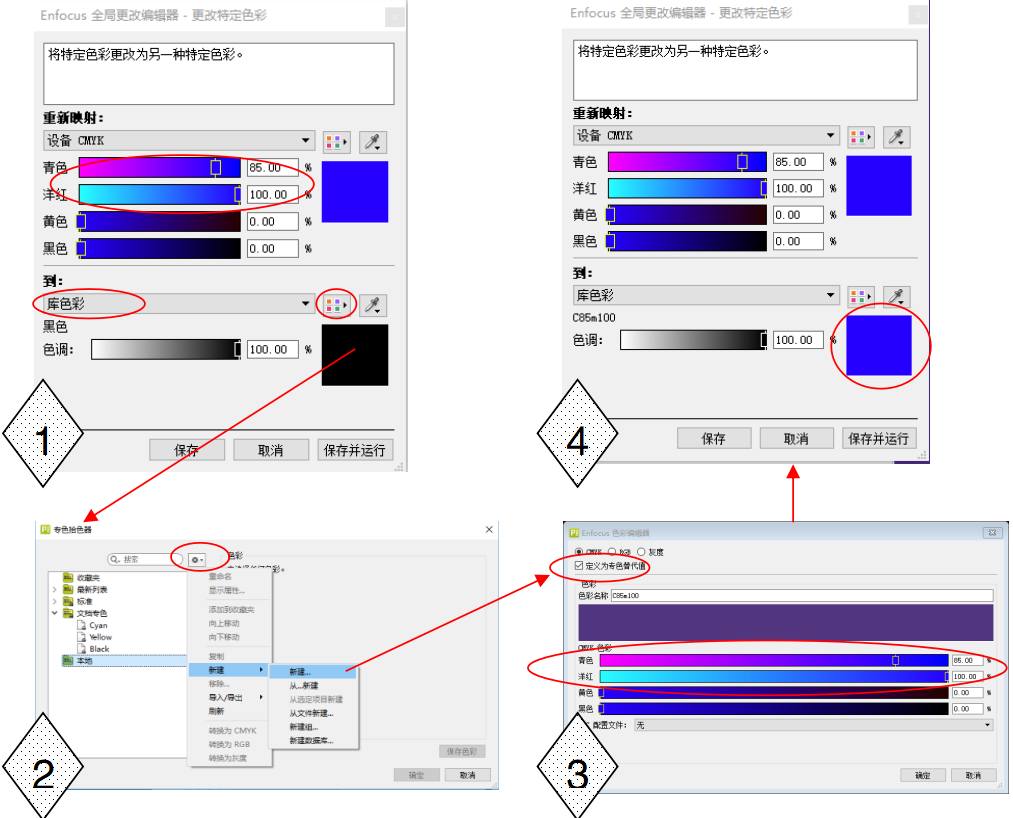
Figure 15 Step Three Diagram
Step Four: The spot color plate for the text is modified in the same way as in Step Three. Using 'Output Preview', you can see that the background and the text become two separate spot color plates, as shown in Figure 16.
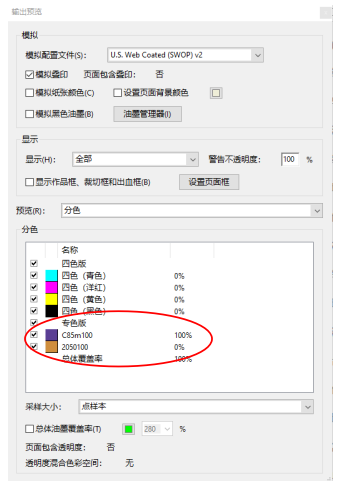
Figure 16 Step Four Diagram
(2) The electronic file to be converted to a spot color plate contains images. As shown in Figure 17, it is necessary to convert a four-color file to 'Spot Black'. The original file consists of C, Y, and K plates, with the deepest areas of the C and Y plates being C50 Y90.
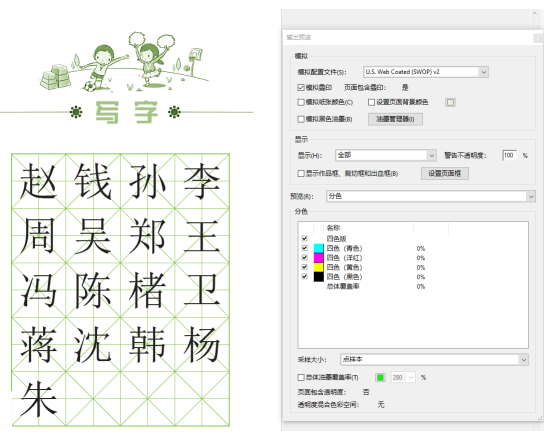
Figure 17 Spot color version includes images
Step 1: It is necessary to change series colors such as C50 Y90 to spot colors. Open pitstop 'Global Change' → 'Standards' → 'Prepress' → 'Apply Color Curve', as shown in Figure 18.
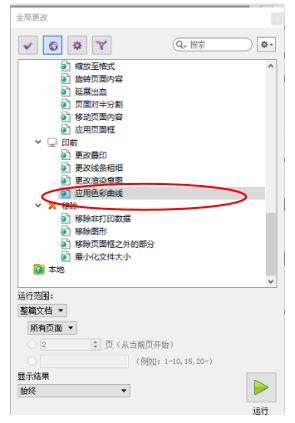
Figure 18 Step One Diagram
Step Two: Keep the color of only one channel, either C or Y, and change the deepest part of the retained channel's color to solid. The other colors in the channel vary proportionally. (For example, remove the color from the C channel and keep the Y channel.) After adjusting the curve, 'Save and Run'. The file becomes Figure 19.
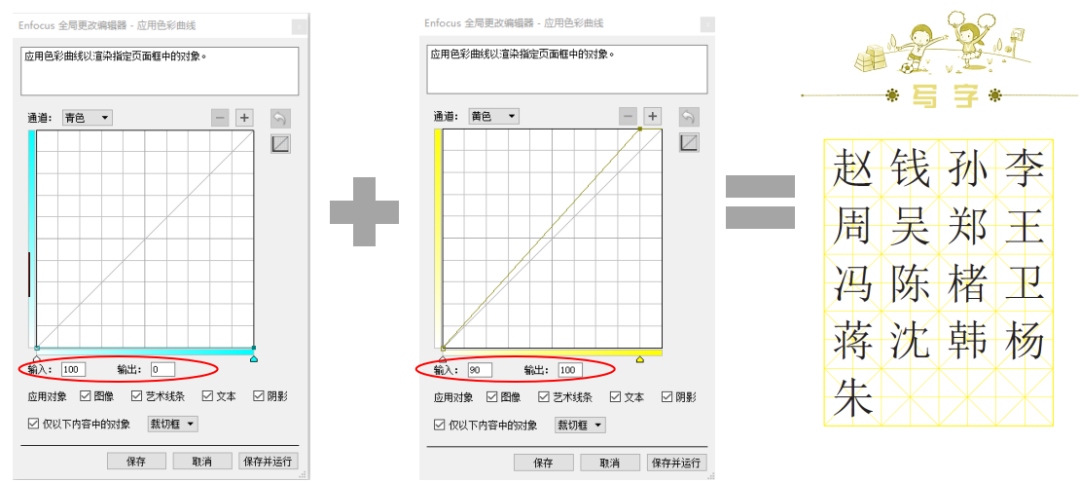
Figure 19 Step Two Diagram
Step Three: Define the retained single channel as a spot color plate and assign a color value. The Y channel retained from Step Two is defined as a spot color and assigned the color value C50Y90, thus converting to Figure 20.
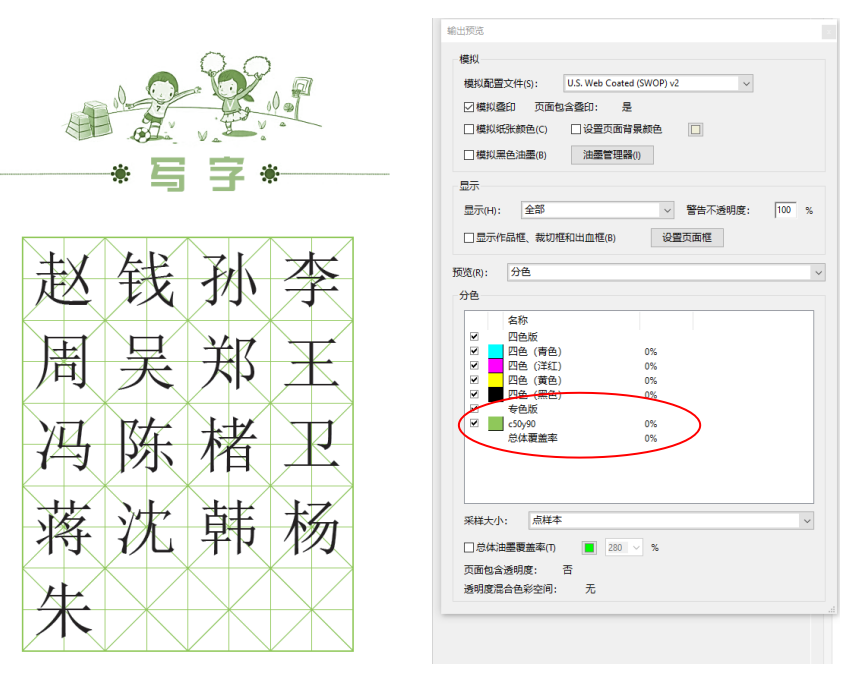
Figure 20 Step Three Diagram