


Cleverly using AI to solve shadow, border, and position issues in wine box design-super practical!
Adobe Illustrator (hereinafter referred to as "AI") is an industry-standard software for vector illustrations used in publishing, multimedia, and online images. As a great vector graphics tool, the software is widely used in designing and producing printed materials (such as flyers and brochures). However, some issues can arise during use, which can be solved with the help of another feature. In this article, I'll use three examples from real-life cases of designing and producing liquor boxes to explain.
Image Shadow Issues
When designing a certain liquor box, you need to add a black shadow to the bottom right of the image to create a three-dimensional effect, highlight the product's features, and create a certain visual impact. You can create this shadow effect in AI or PS, but making it in PS is more cumbersome, so AI is generally used.
First, select the target object, then choose Effect → Stylize → Drop Shadow from the menu. Input the relevant data in the pop-up window, and you'll get a black shadow effect pointing to the bottom right. When it comes to batch printing, you usually need a large layout that combines two liquor boxes to save paper and printing processes. When combining two boxes, you need to rotate the other box 180°, which causes an issue: the shadow of the first image still points to the bottom right, but the black shadow of the rotated image doesn't rotate along with it. In this case, after creating a correct black shadow, select the shadow, then click Menu → Object → Expand Appearance. That way, when composing the layout, if the other image needs to be rotated 180° or any other angle, the shadow direction will change accordingly (as shown in Figure 1).
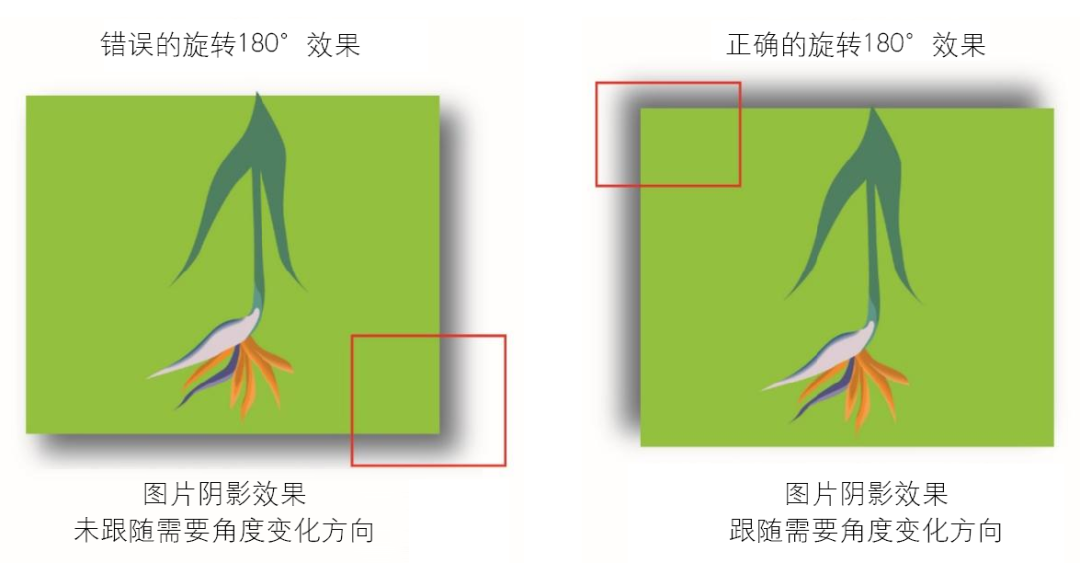 Figure 1: Wrong shadow effect (left) vs. correct shadow effect (right)
Image border issue
When designing a wine box, you need to put a framed image on the front of the box. First, draw a rectangle in AI, set the thickness of the rectangle's border, and then place the image inside the rectangle. This creates a framed image.
However, during layout, the front image needs to stand out, so you'll adjust its size according to visual aesthetics. That means the same framed image on the side of the box should be smaller than the front image. Since the front and side images are the same, people often just scale down the front image proportionally for the side. But after scaling, the border thickness doesn't change. The solution is to first select the border, then go to Effect → Object → Path → Outline Stroke. This turns the border thickness into vector shapes, so when you scale down the side image proportionally, the border thickness scales correctly too (as shown in Figure 2).
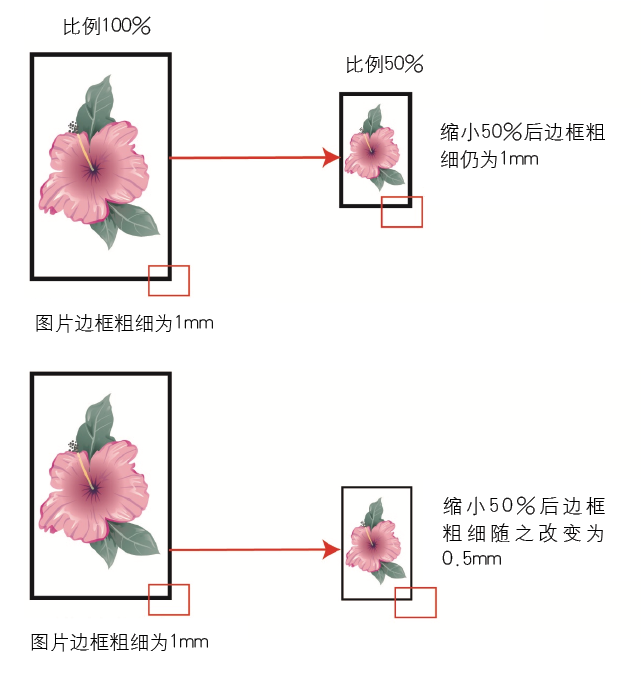
Figure 2: Incorrect border effect (top) vs. correct border effect (bottom)
Pattern Position Issues
When designing and making a wine box, not only do the display surfaces need to look good and have proper proportions, but the product features also need to be highlighted to create a visually striking effect. Therefore, different finishing techniques are needed on the wine box surfaces, with each surface using a different effect. For example, the front could use a patterned screen-printed crystal glue effect, while the sides could have a full-scale screen-printed snowflake effect. When creating screen-printed patterns in AI, converting the design into a vector graphic can make the file very large. Converting it to a PS bitmap also requires a certain level of precision, and embedding it back into AI still results in a large file size. So, when making repetitive patterns, the pattern editing feature in AI is often used.
First, create a vector pattern with dimensions based on your desired size, making sure that when moved around, its edges can align perfectly. Then select the pattern, go to the menu and choose Object → Pattern → Edit Pattern. In the pop-up dialog, enter the desired dimensions or adjust the spacing visually to get the effect you want. Once confirmed, the small pattern will appear in the swatch panel and can be directly used to fill the front layout. However, when filling two front patterns, you might notice that their positions are different. At this point, you need to use one pattern as a reference and move the other to match its position.
To do this, select the pattern, go to Object → Transform → Move, input the values in the dialog, and click Copy and OK. You might find that the copied pattern still isn't aligned. The solution is to select the pattern again, go to Object → Transform → Move, input the values, and then check both Transform Objects and Transform Patterns, then click Copy and OK again. The copied pattern will now be perfectly aligned (as shown in Figure 3).
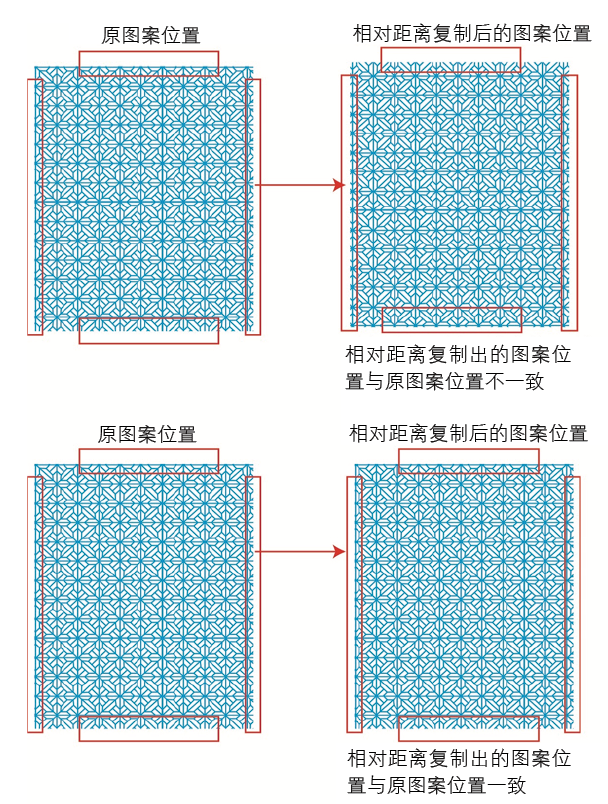
Figure 3 Incorrect copying effect (top) and correct copying effect (bottom)